
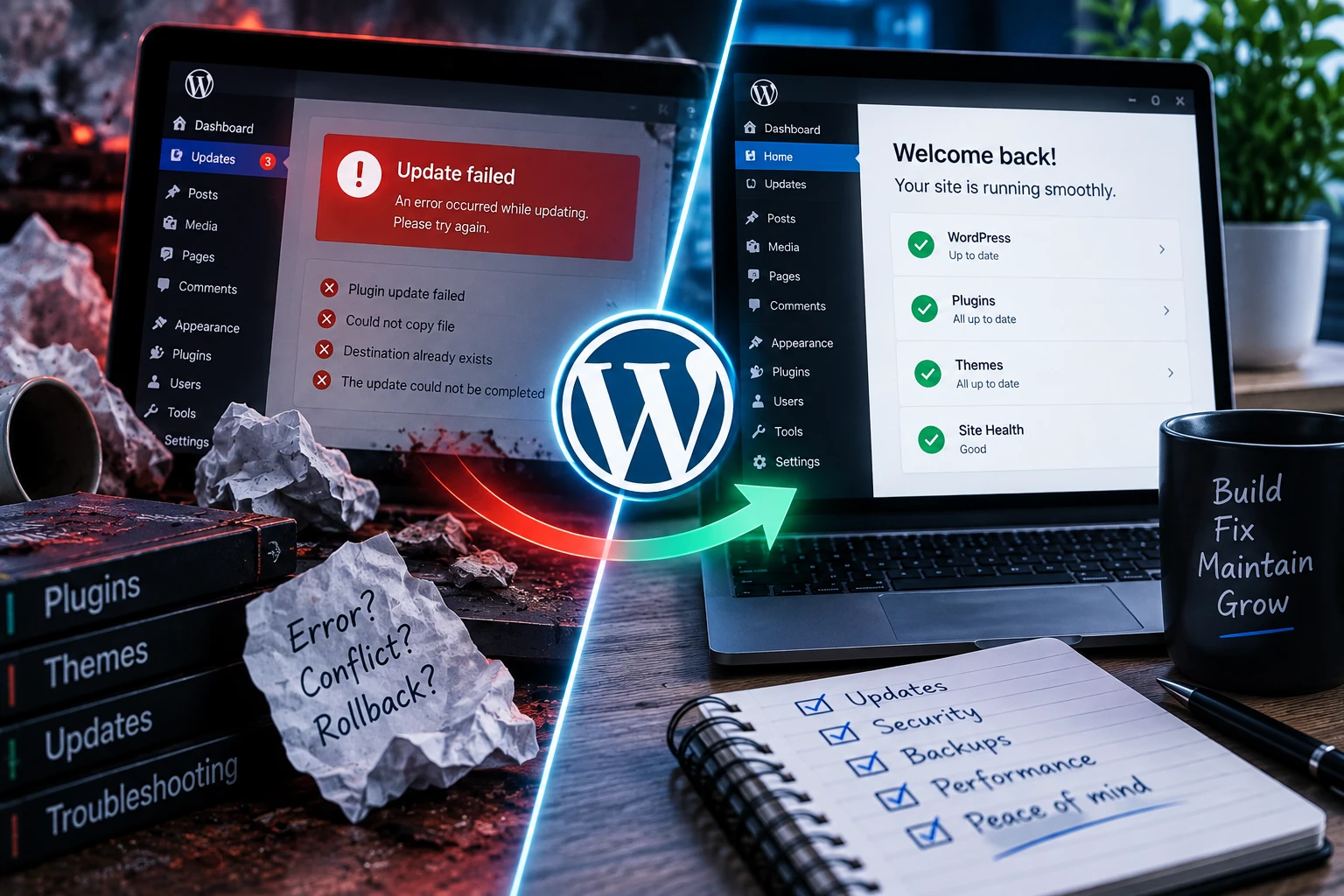
If a WordPress update breaks your site, stop making further changes, record the error and make sure you have a usable backup before trying to repair it. The safest fix depends on what was updated and whether you can still reach the WordPress dashboard or hosting account.
What should you do first?
- Stop repeating the failed update. Retrying several plugins or replacing files at random can hide the original cause and make recovery harder.
- Write down what changed. Note the plugin, theme or WordPress version involved, the time of the update and any exact message on screen.
- Check the whole site. Look at the public pages, the dashboard and the specific feature that matters, such as a contact form or checkout. Sometimes an update breaks one workflow rather than the whole site.
- Confirm what backup exists. A backup is useful only if it contains the files and database needed for recovery and can actually be restored.
- Preserve access. Keep hosting, WordPress and file-transfer details available. Avoid changing passwords in the middle of recovery unless there is a security reason.
Why do WordPress updates cause problems?
An update changes code that has to work with the rest of the site. A plugin may expect a newer PHP version, a theme may override something that has changed in WordPress, or two plugins may rely on different versions of the same library. An interrupted update can also leave only part of a package installed.
The newest component is not always the guilty one. An update can expose an older fault that was already present, so diagnosis matters more than simply uninstalling the last thing in the list.
Can you recover the site without restoring everything?
Often, yes. If one plugin caused the failure, it may be possible to disable or roll back that component while leaving recent content and other working parts untouched. WordPress recovery mode, hosting file access and error logs can help isolate the fault.
A full restore may be appropriate when an update was interrupted, several components changed together or the database is no longer consistent. Before restoring, check what orders, form entries, edits or other data arrived after the backup was created. Replacing the whole database can remove legitimate recent activity.
What should you avoid?
- Do not delete the entire plugins folder to solve one suspected plugin fault.
- Do not paste an unexplained code fix into the live site without understanding what it changes.
- Do not assume clearing every cache repairs the underlying error. It can remove stale output, but it does not fix incompatible code.
- Do not restore an old backup without checking what newer business data it would overwrite.
- Do not leave a security update indefinitely once the immediate fault is contained. Work out a safe route to a supported version.
How can you make the next update safer?
Keep reliable backups, know how they are restored, and avoid updating many important components at once without a reason. For a business-critical site, test significant changes away from the live site when practical and check the real workflows afterwards.
The WordPress 7.1.2 security update is an example of an update worth doing promptly, with a backup and proper checks.
Maintenance should include more than clicking update. It should consider compatibility, recovery and whether the site still does its job. That is one of the differences between unmanaged hosting and ongoing WordPress Hosting & Care.
Need help with a failed update?
Send the site address, what was updated and the exact error you can see. I provide practical WordPress support for faults like this.