
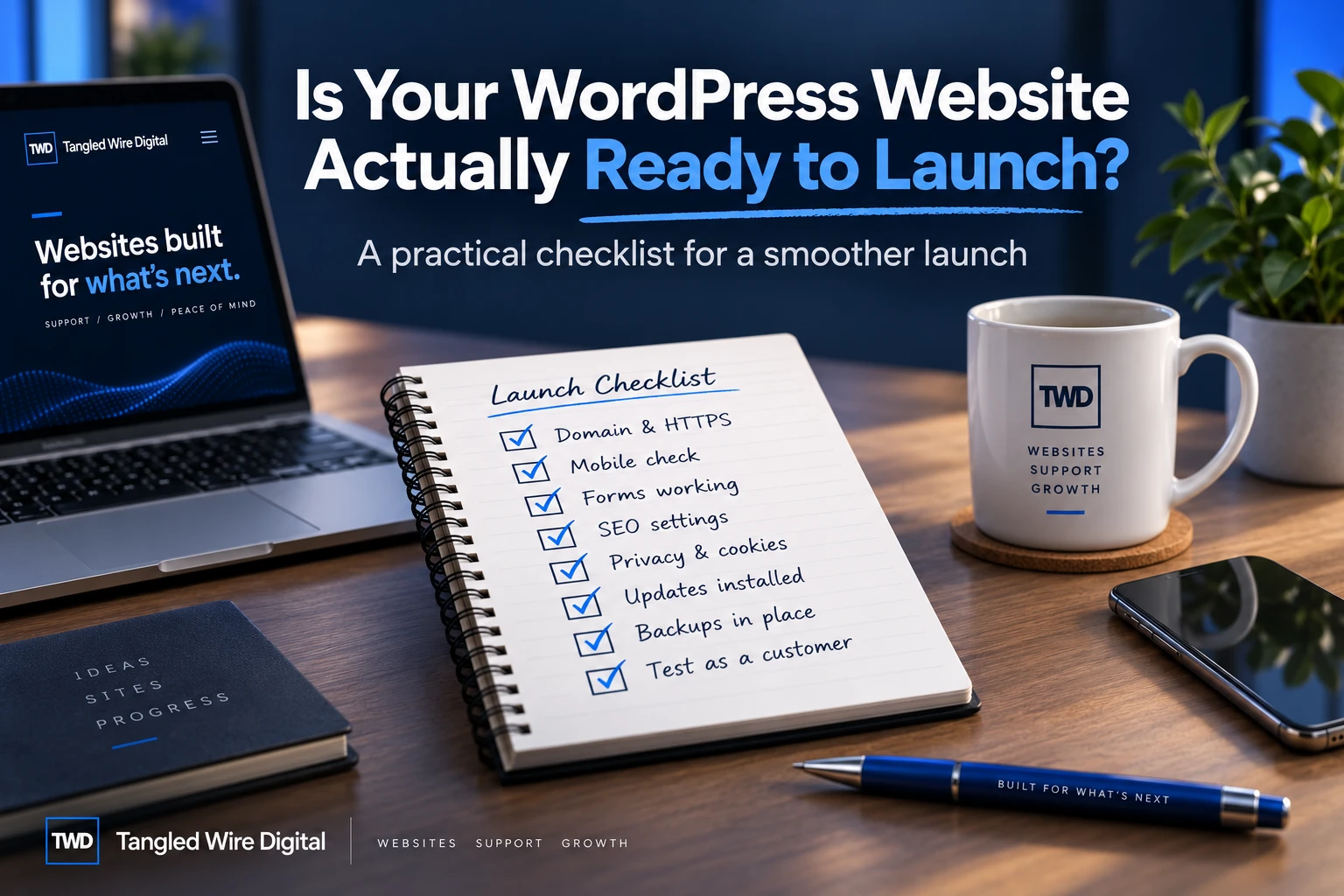
The homepage looks good. The logo is in place. The copy has been approved.
It is tempting to assume the website is finished.
But many launch problems are things you cannot spot from a quick look at the homepage: forms that never deliver, staging URLs left in content, pages that search engines cannot index, mobile menus that fail, privacy wording that no longer matches the site, or a backup nobody has tested.
A sensible launch check is about following the important journeys rather than admiring individual pages.
Here are the areas I would check before putting a WordPress website in front of customers.
1. Check the real domain and HTTPS
The final website should load consistently on its intended domain using HTTPS.
Look for old development or staging addresses in:
- images;
- links;
- canonical URLs;
- forms;
- structured data;
- plugin settings.
A migration can appear successful while individual assets are still being loaded from the old site.
2. Check it on an actual mobile-sized screen
Do not assume that because the design is described as responsive it works properly everywhere.
Check navigation, headings, buttons, forms, images and important calls to action at a realistic phone width.
Also look for horizontal scrolling and elements overlapping each other.
3. Submit every important form
A form appearing on the page is not proof that it works.
Actually submit it.
Check:
- required fields;
- validation;
- consent;
- the confirmation shown to the visitor;
- whether the submission is stored where expected;
- whether the notification email arrives.
WordPress successfully handing an email to its mail system does not guarantee that the recipient actually received it.
4. Check search-engine visibility
Staging websites are commonly set to discourage search engines. That is sensible while they are under construction.
It becomes a problem when the setting follows the website into production.
WordPress’s Discourage search engines from indexing this site setting causes noindex output, but it does not stop ordinary visitors accessing the website.
At launch, verify the setting deliberately rather than assuming it changed during migration.
5. Check titles, descriptions and canonical URLs
Every important page should have a sensible page title and description.
Canonical URLs should point to the real production domain, not a staging address.
Then check that the sitemap is available and contains the pages you actually want search engines to discover.
These details are easy to miss because they mostly live behind the visible page.
6. Follow the navigation and important links
Click things.
Check the main menu, footer, buttons, email links and important internal links.
Also deliberately request a page that does not exist and make sure the website returns a genuine 404 page rather than an unrelated page with a successful response.
7. Review privacy and cookie wording against the website you actually built
Policies written early in a project can become inaccurate as features are added.
If the final website collects names, email addresses or other personal information, the public wording should reflect that.
The same principle applies to cookie consent: the banner, enabled categories and policy should agree with each other.
8. Update WordPress, plugins and themes
Launch is a bad time to discover the site was built on versions that were already waiting for security updates.
Check WordPress Core, active plugins and the active theme before launch.
WordPress’s own Site Health screen can also flag configuration, security and update problems worth investigating.
9. Make sure you have a usable backup
Take a backup before the final migration or launch changes.
Then know how you would restore it.
“Backups are enabled” is not quite the same thing as knowing you can recover the website when something goes wrong.
10. Check images and performance
Large images are one of the easiest ways to make an otherwise simple website unnecessarily slow.
Look at the actual files the browser downloads rather than just the dimensions shown in the editor.
Also check that meaningful images have useful alternative text where appropriate.
11. Check the administrator and security basics
Before launch, remove test accounts and unnecessary plugins.
Check that:
- administrator accounts are intentional;
- passwords are strong;
- file editing is appropriately restricted;
- debug information is not displayed publicly;
- HTTPS is working;
- obvious sensitive files are not exposed.
12. Test the website as a customer
This is the most important one.
Stop testing individual components and perform the actual journeys the website exists to support.
For example:
Google or direct visit → service page → contact page → submit form → receive confirmation
If the website sells something, complete the purchasing journey.
If it generates enquiries, generate one.
The final question is not “does the website load?”
It is:
“can a real visitor successfully do what this website was built for?”
A launch check is different from an automated scan
A free website health check can surface useful technical signals, but automated tools cannot decide whether a business website genuinely makes sense to use.
That needs somebody to follow the pages and journeys, check the evidence and decide what actually matters.
That is the purpose of the WordPress Launch Check.
The standard check is £99 and covers up to five key pages and two critical forms or customer journeys, with a straightforward verdict:
- Ready to launch
- Launch with fixes
- Not ready
The point is not to produce a giant automated report. It is to work out whether anything important should stop the site going live. If you want to discuss a launch, get in touch.